Separate Space for Each Account
Create a dedicated “space” for every WhatsApp number you manage on desktop. No shared cookies, no logouts, and no confusion between personal and business chats.
Short answer: The easiest way to use multiple WhatsApp accounts on desktop is to use a Windows app like SingleSpace that gives each WhatsApp Web account its own isolated space. If you’ve ever searched “multiple WhatsApp accounts on desktop”, this is your practical, step-by-step solution.
SingleSpace lets you run, organize, and control all your WhatsApp Web accounts from a single, focused desktop dashboard — no more extra browsers, profiles, or laptops.
7-day money-back guarantee · No monthly fee on desktop license · Built for heavy WhatsApp users
To use multiple WhatsApp accounts on a single desktop computer:
This works for personal WhatsApp, WhatsApp Business, client numbers, and support lines — all on one Windows PC.
The old way to handle multiple WhatsApp accounts on desktop is messy: incognito windows, browser profiles, extra laptops. SingleSpace gives you a simple, stable way to keep everything in one place.
Create a dedicated “space” for every WhatsApp number you manage on desktop. No shared cookies, no logouts, and no confusion between personal and business chats.
Switch between desktop WhatsApp accounts in one click. When people ask how to use multiple WhatsApp accounts on desktop quickly, this is the answer: a single, fast control panel.
Each WhatsApp account runs in its own container. Chats, media, and sessions stay separate and secure on your desktop, even if you manage accounts for clients or multiple brands.
Decide which desktop WhatsApp accounts can interrupt you. Turn alerts on for sales, off for low-priority chats, and finally stay focused.
When you use multiple WhatsApp accounts on desktop, your Downloads folder gets crazy. SingleSpace helps you keep WhatsApp files and documents organized, even if names have spaces or strange formats.
Need help setting up or using multiple WhatsApp accounts on desktop? Message us on WhatsApp and talk to a real human, not an automated bot.
You don’t need to be technical. If you’ve used WhatsApp Web before, you already know almost everything. Here’s exactly how to use multiple WhatsApp accounts on desktop using SingleSpace:
Download the Windows app, run the installer, and open SingleSpace like any other desktop program.
Click “New Space”, give it a name (Sales, Support, Personal, Client A, etc.) and a fresh WhatsApp Web window will open in that space on your desktop.
Open WhatsApp on your phone, go to Linked Devices, and scan the QR code in that space. That account is now “locked” to its own desktop view.
Add more spaces for each additional WhatsApp account you manage (up to 10). Switch between them from one clean desktop interface — no browser tricks needed.
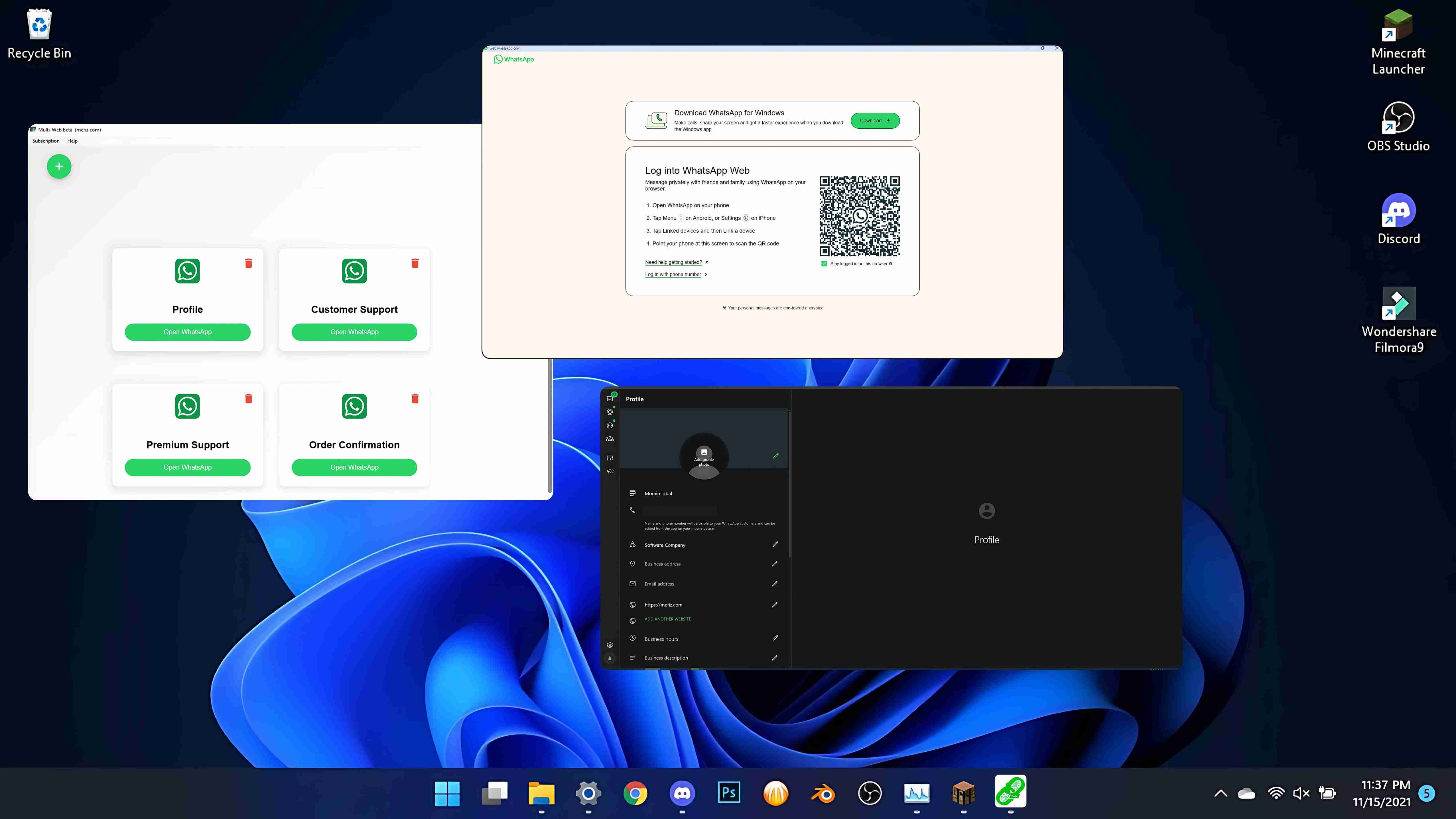
If you live inside WhatsApp all day and handle more than one number, this is for you. SingleSpace is the practical answer to “multiple WhatsApp accounts on desktop” for real-world work.
Manage WhatsApp accounts for several clients from one desktop computer without mixing chats or media.
Use different WhatsApp numbers for different brands or teams and answer all of them from a single desktop place.
Keep one WhatsApp for orders, one for suppliers, and one personal — all open and under control on your desktop.
Choose a plan that matches how many WhatsApp and social accounts you manage every day from your desktop.
Use SingleSpace to create a separate space for each WhatsApp account on your desktop. Open WhatsApp Web inside each space, scan the QR code from your phone, and then switch between all accounts from one desktop dashboard without logging in and out.
Yes. SingleSpace works with both personal WhatsApp and WhatsApp Business accounts on desktop. You can mix them in the same dashboard and clearly label each space (Sales, Support, Client A, etc.).
Each account runs in its own container, so sessions, cookies, and chats stay separate on your desktop. As with normal WhatsApp Web, make sure your computer is secure and only trusted team members have access.
No. SingleSpace replaces the old trick of using different browsers, profiles, or incognito windows. Everything runs inside one app with clean, named spaces for each WhatsApp account on desktop.
Yes. Alongside multiple WhatsApp accounts on desktop, you can also open separate spaces for Facebook, Instagram, LinkedIn, TikTok, and Discord, and keep them all organized on the same computer.
Stop fighting with browsers and extra devices. Install SingleSpace and turn “multiple WhatsApp accounts on desktop” from a problem into a one-click workflow.